
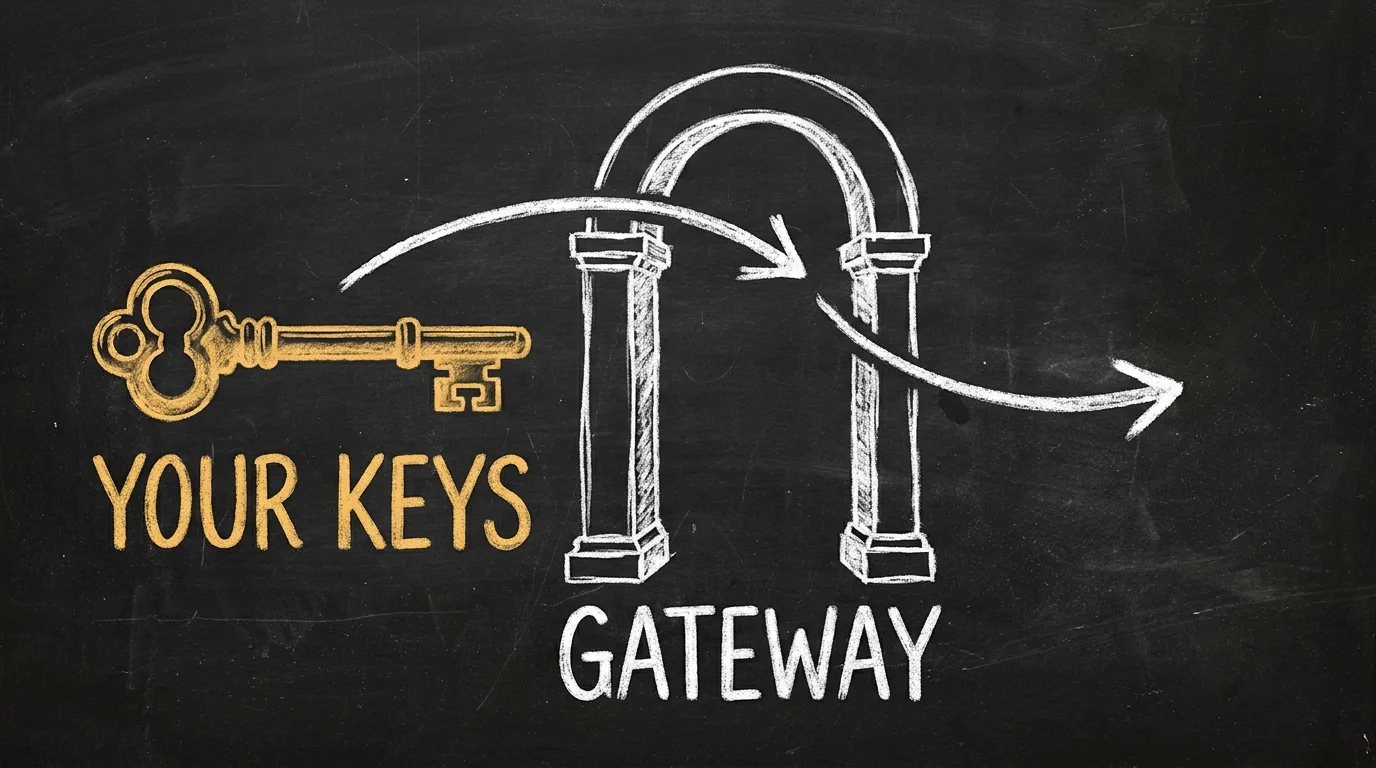
You sign up for an AI gateway, paste the base URL into your agent, and it works. Nice. Then you ask yourself whose key just answered you. Until this release, on SpiderGate, the honest answer was: maybe somebody else's.
I fixed that. SpiderGate now runs on keys you bring, and I built a setup that tells you exactly which keys to get, where to get them, and which ones are free.
No key, no calls
A new workspace used to be served by a shared pool. It felt generous. It was also a bad deal for the people whose keys were in that pool, and it hid the one thing you need to know: what your own setup can actually run.
So here is the rule now. A workspace with no key of its own can browse every model in the catalog. It cannot call one. Ask for a model your keys cannot reach and you get 403 no_access, and the error tells you which provider keys would open it up, with a link straight to setup.
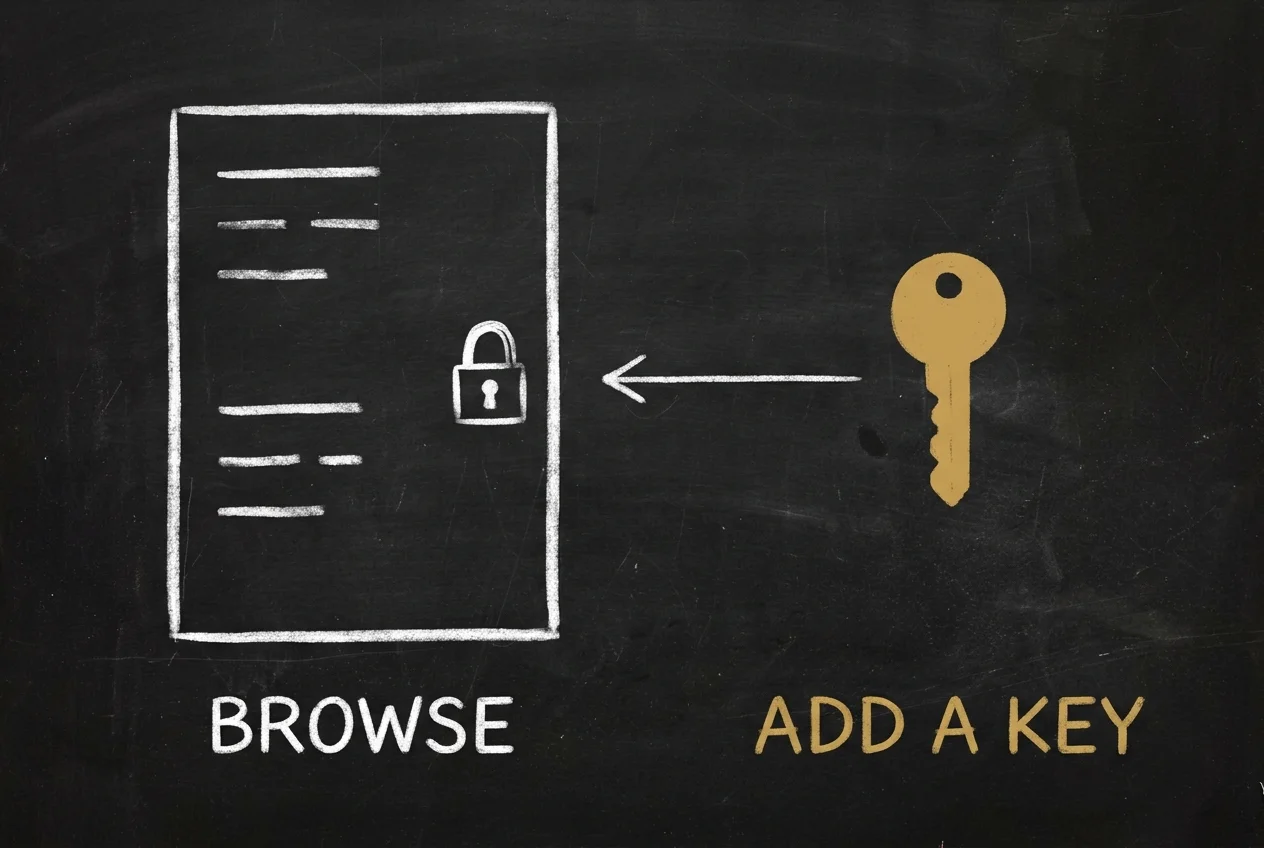
That is not a wall. It is a signpost. The error is written for your agent as much as for you: it names the providers, gives the link, and says the next step is to add a key.
Where your request finds a key
When you send a request, SpiderGate looks for a key in this order:
Your own keys. The ones in your vault.
Your connected companies' keys. If you run more than one company on SpiderGate, they can share keys with each other, and any key can be kept private.
The community pool. Free keys other workspaces chose to share. You can draw on it while you share at least one active free key of your own.
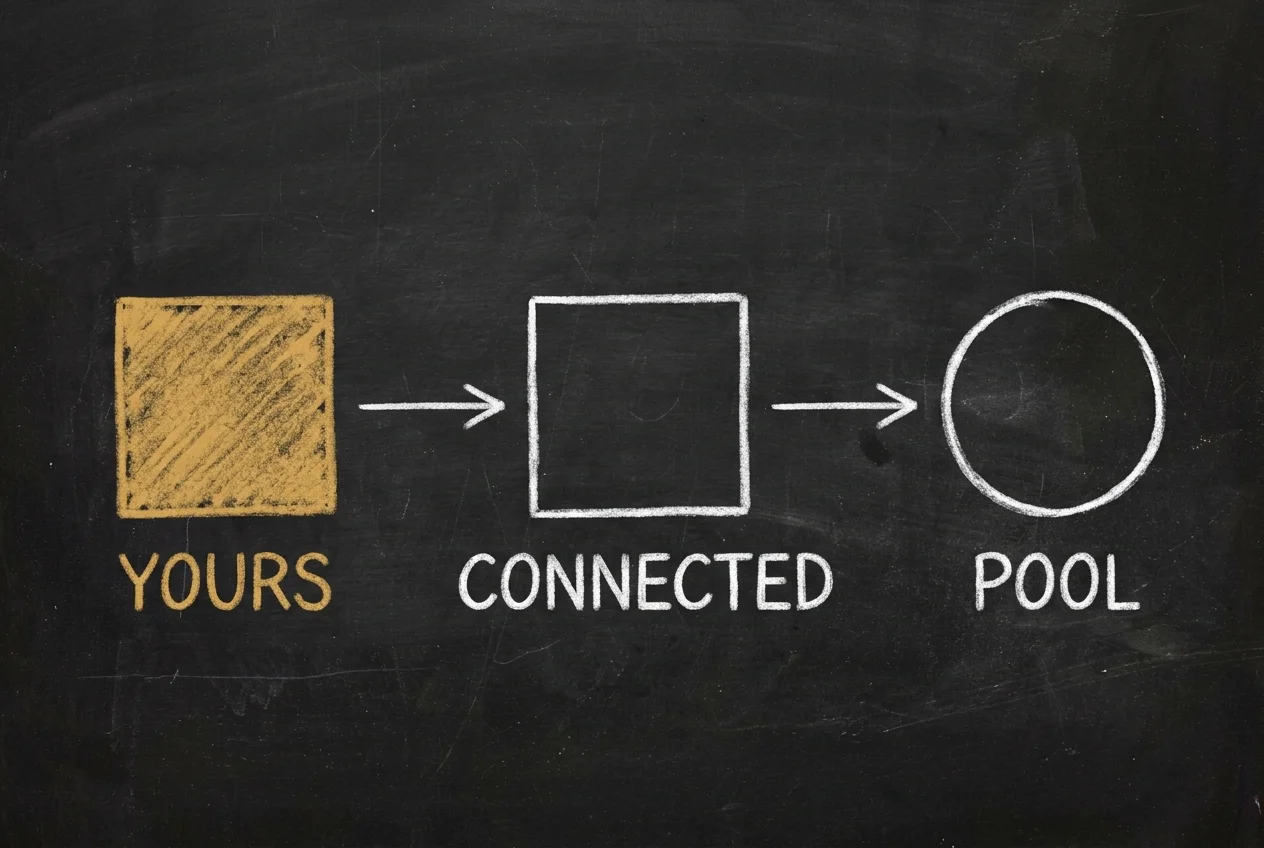
Paid keys and subscription keys never go into the pool. They are yours, full stop. Free keys are shared with the pool by default, and a workspace admin can switch that off for the whole workspace.
Six steps from zero to working
The setup lives at app.spideriq.ai/dashboard/gate/setup. It asks six questions and does the boring part for you:
How you will use it. Agents like OpenClaw or Hermes, chat in the Playground, your own app, media, or a team.
What you already pay for. Subscriptions first, because they bring the strongest models.
Free keys we recommend. Each card shows the free allowance and whether the provider wants a phone check or a card.
Teammates. Got a colleague with a key? Add their email. They get a page with a guide, the key is checked live before it is saved, and it lands in your vault. They never need an account.
Add keys. One guided queue, the same guides as the docs.
Ready. How many models you can use now, and the Base URL to paste into your tools.

Leave whenever you like. Save and exit keeps your place, and a small bubble in the corner brings you back.
Every locked model names the key it needs
The Models page now counts two things: what you can use today, and what needs a key. As of 4 November 2026, a workspace with no keys sees 0 usable models and 1,524 locked ones. Every locked model has an Add API key button. Add the key yourself, or invite the person who has it.
Recipes: one key is enough
The ready-made names, like spideriq/chat and spideriq/coding, are now recipes. A recipe is a list of fallback slots, one per provider. A request tries the slots in order and uses the first one your keys can fill. So a single key of any provider in that list is enough to make the recipe work.
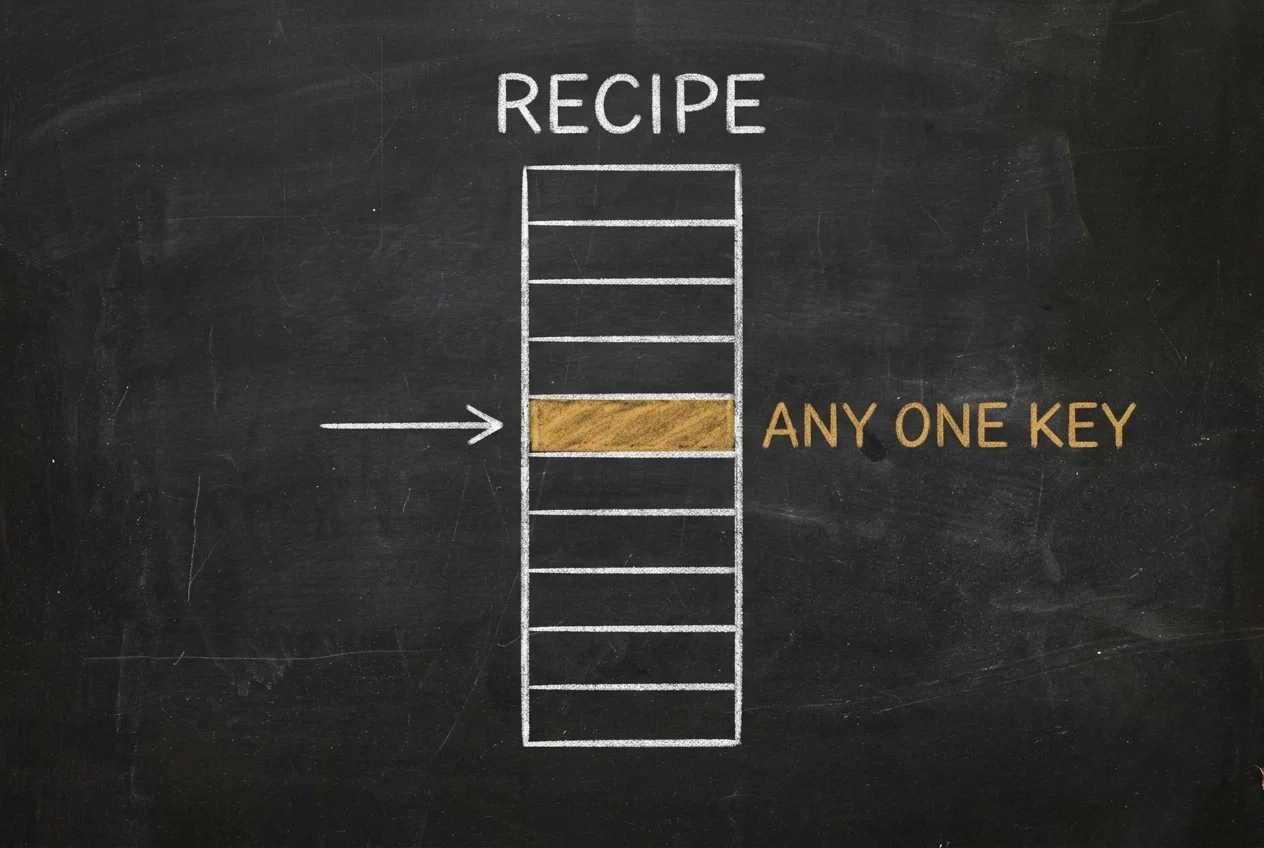
You can see all of it on the Recipes tab of the aliases page: every recipe, every slot, and which of your keys fills it. Click Customize to copy a recipe into an alias of your own. Your agent gets the same answer from the gate_recipes tool, and the command line gets it from spideriq gate recipes.
Let your agent do the setup
Your agent can read where setup stands with gate_onboarding_status and tell you the next step, with a link. It can suggest a teammate to invite. It cannot send the invite. A person does that, on purpose.
Built, and off for now
Two more pieces are built and switched off by default: platform jobs running on your own keys, and a daily budget for pool use. The groundwork is in; the switch is not on yet.
Start here
Open setup, add one free key, and watch the Models page count go up. The full walkthrough is in Set up SpiderGate with your own keys, and the recipes are explained in Use recipes on your own keys.