Traces
Who this is for: Anyone running more than one agent through SpiderGate who needs to know which one is spending the money, or why a particular request was slow or wrong.
What this does: Walks you through the Traces view, from the filtered list down to a single request's spans, and shows you how to jump from a request your own code made to that request's row.
Before you begin
You can sign in to the dashboard at
app.spideriq.aiand reach Gate.Your brand has sent at least one request through the gateway. A brand with no traffic shows an empty list, which is correct rather than broken.
Optional: if you want to correlate from your own code, you need to be able to read response headers from your gateway calls.
Steps
1. Open the Traces tab
Go to Gate → Traces. The list shows one row per request, newest first: the timestamp, the agent, the model, tokens, cost, latency, speed, whether it was billed, and the status.
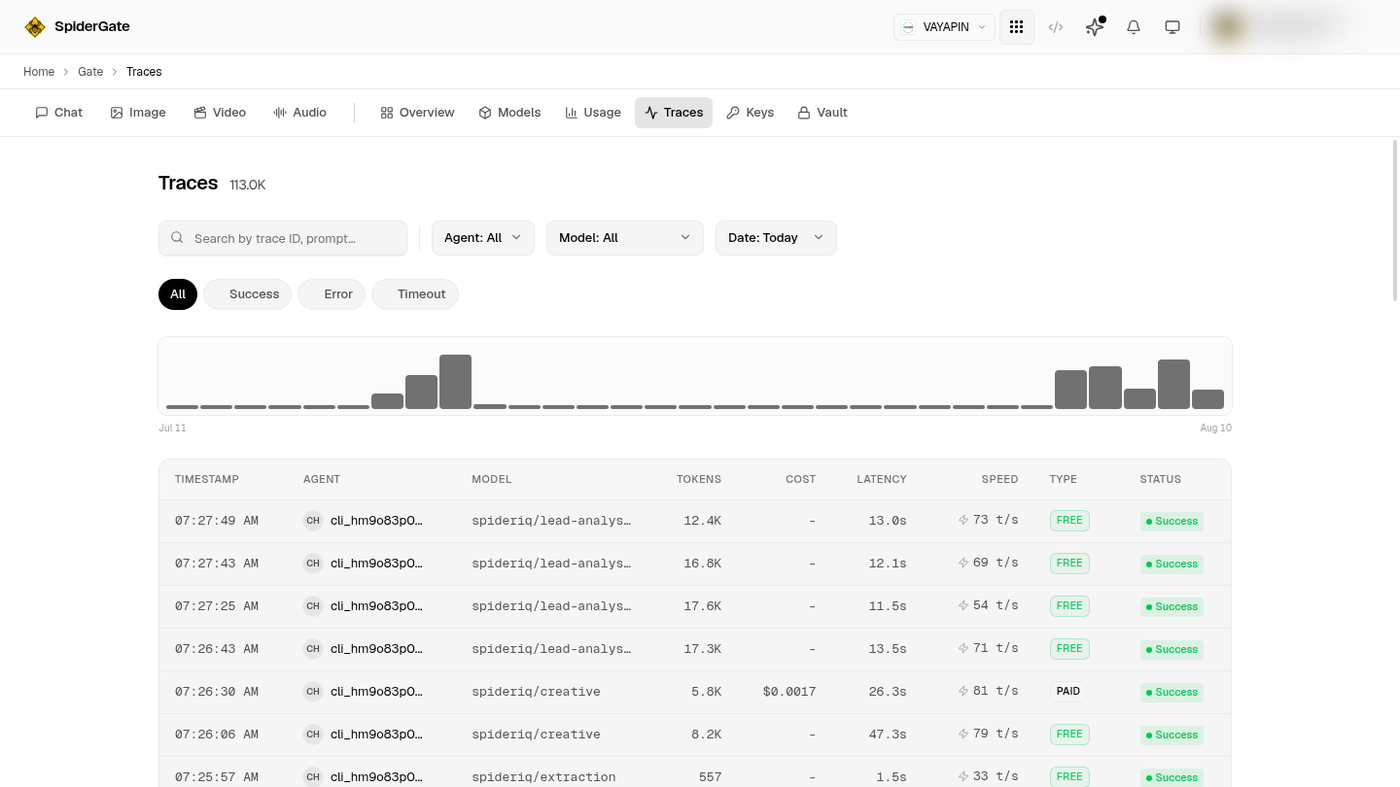
The count beside the heading is every trace held for your brand. The bar chart above the table is volume over the selected range, so a spike or a dead patch is visible before you read a single row.
2. Narrow to the thing you are chasing
Use the filters rather than scrolling. Agent narrows to one token, Model to one model, and Date to the window you care about. The status chips (All, Success, Error, Timeout) sit underneath, and the search box takes a trace ID or prompt text.
To go straight to one agent's history, open Gate → Keys, find the agent's card, and use View Traces on it. That lands you here pre-filtered.
3. Open one request
Click any row. The header gives you total tokens split into in and out, cost, latency and the span count, with three tabs underneath: Overview, Spans and Raw I/O.
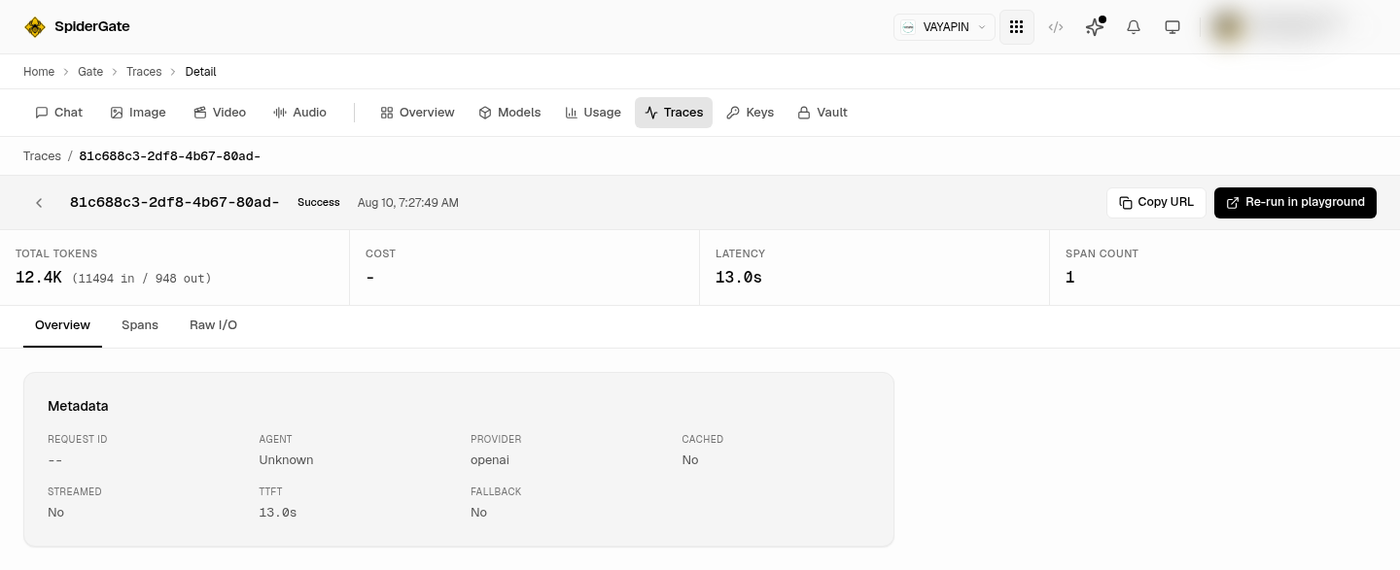
Overview carries the metadata: request ID, agent, provider, and whether the response was cached, streamed or served by a fallback. Spans breaks the request into its phases as proportional bars, so you can see which phase consumed the time. Raw I/O holds the messages themselves.
4. Jump from your own code to a row
Every gateway response carries an x-trace-id header. Log it, and you can paste it into the search box here to find the exact request later.
curl -sD - -X POST "https://spideriq.ai/api/gate/v1/chat/completions" \
  -H "Authorization: Bearer $CLIENT_ID:$API_KEY:$API_SECRET" \
  -H "Content-Type: application/json" \
  -d '{"model":"spideriq/fast","messages":[{"role":"user","content":"hello"}]}' \
  -o /dev/null | grep -i x-trace-id
# x-trace-id: 441c7118-77b3-4e33-a369-d9edcff2123d
If you are instructing an agent, a working phrasing is: "After each SpiderGate call, record the x-trace-id response header alongside the task you were doing, so I can look the request up in the dashboard."
Verify it worked
Send one request through the gateway, then set Date to today and sort by newest. Your request should appear at the top of the list within a few seconds, and the model column should show the model that actually answered. Open it and confirm the Overview tab shows a request ID.
If you captured the x-trace-id from the step above, paste it into the search box. It should return exactly one row.
Troubleshoot
The list is empty. Check the date filter first, then that you are in the right brand using the brand selector in the header. A brand that has never called the gateway has nothing to show.
The Spans and Raw I/O tabs are empty but Overview is filled. Message bodies and span timings are held in a separate tracing service from the request metadata. When that service is unreachable, the list and the summary still load from SpiderGate's own store and the bodies do not. This is the view degrading on purpose, not data loss.
The model column is not the model I asked for. That is the point of the column. Your alias fell through to another model in its chain. The Overview tab's fallback field confirms it.
Cost shows a dash. The request was served by a free-tier key, so there is no per-token charge to show.
I want to pull traces from my own code. You cannot yet. Reading traces back is a dashboard surface today; there is no supported API for it. The
x-trace-idheader above is the bridge in the meantime.
Related
Agent Keys covers creating agent tokens and the View Traces shortcut.
Chat Completions covers the request side, including the route trace.
Dashboard Overview covers the Usage tab, where these same requests are aggregated.