Your Own Routing Aliases
Who this is for: anyone whose brand has brought its own provider keys to SpiderGate and wants requests to run on those keys, under a name you choose, instead of on SpiderIQ's shared capacity.
What you'll learn: how to create a routing alias of your own, what it costs you, which of your keys it can use, and exactly what happens when you name a model you hold no key for.
A client alias is a routing name you define. You give it a short leaf — cheap-extract — and SpiderGate publishes it as client:<your-brand-id>/cheap-extract. Behind it sit one or more slots, and every slot names one of your own provider keys.
It is the opposite side of the coin from task aliases. A spideriq/* alias is ours: we choose the models, we keep the chain healthy, and it runs on shared capacity. A client:* alias is yours: you choose the models, and it runs on your keys and your bill.
What it costs you
Creating, reading and deleting aliases is free — that surface is not metered.
The completions are billed by your provider, on the key the slot names, exactly as if you had called that provider yourself. SpiderIQ does not resell those tokens and does not take a cut of them.
Before you begin
Your brand needs at least one active provider key in the key vault. An alias with no usable key of yours cannot serve, and SpiderGate will not quietly borrow one of ours to cover it.
You need the admin role on the brand. A member can look at aliases; arming one is an admin action.
Have the key id to hand — the small
#nnnext to each key in the Keys rail.
Which of your keys it can use
Only keys your brand owns. That is enforced in the database as an ownership equality, not as a checklist somewhere in the code, so there is no path from your alias to another tenant's key or to SpiderIQ's shared pool.
A key being in our shared pool does not change this. If you contributed a key and it is also pooled, you can still name it — because you own it. Somebody else cannot, for the same reason.
Beyond ownership, a slot is only usable if the key is active and its type can serve that model. A free key serves only models that are free at that provider, which SpiderGate cannot confirm ahead of time — so that slot is shown as unverified rather than green.
Steps
1. Open the Aliases page
In the dashboard, go to Gate → Aliases (/dashboard/gate/aliases). It is the last tab on the gate nav.
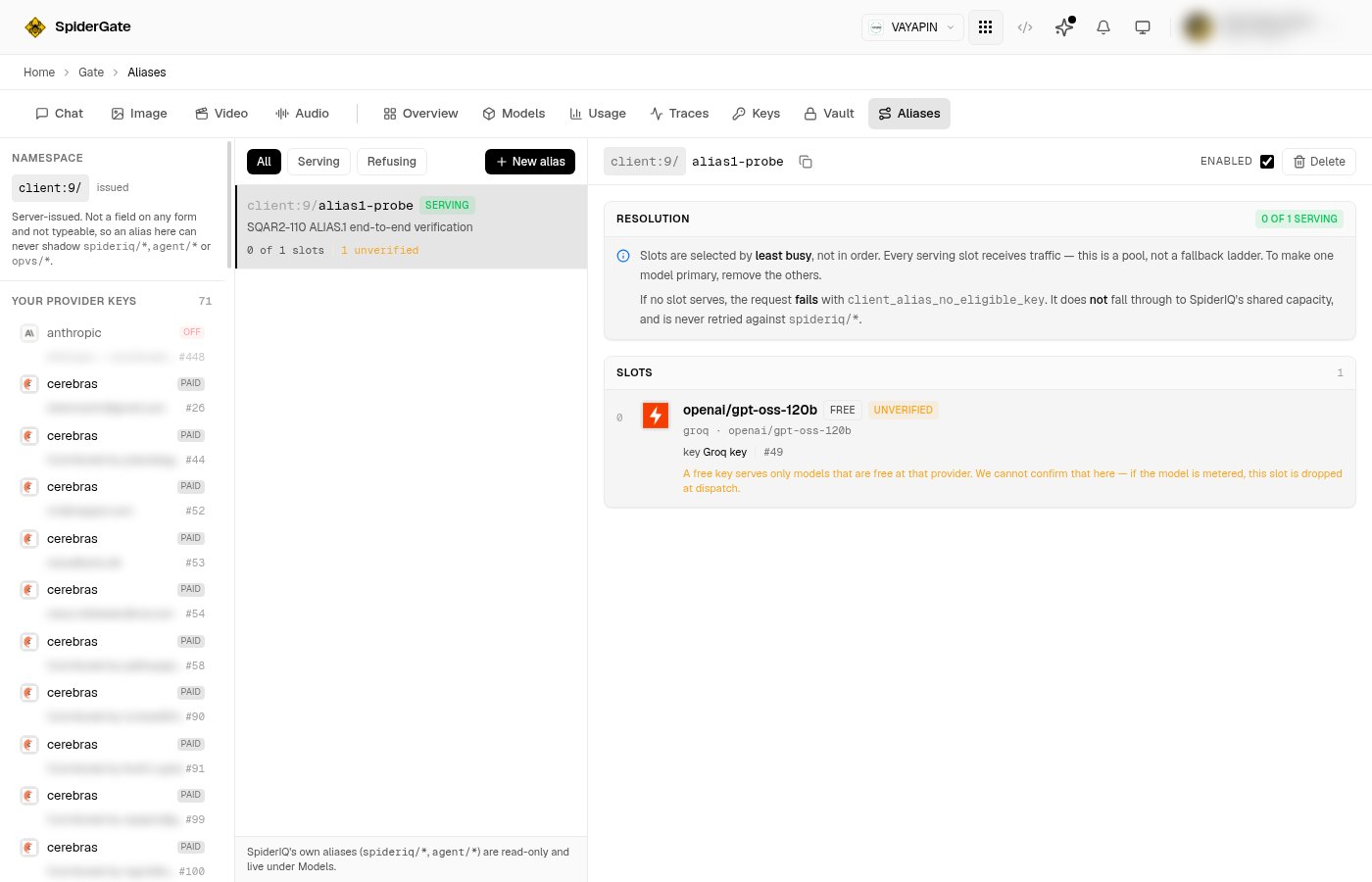
The left rail shows your namespace and every provider key you own. The middle column lists your aliases; each carries a Serving or Refusing chip so you can see at a glance whether it can actually run. The right pane explains the current alias's resolution and lists its slots.
2. Create the alias
Click New alias.
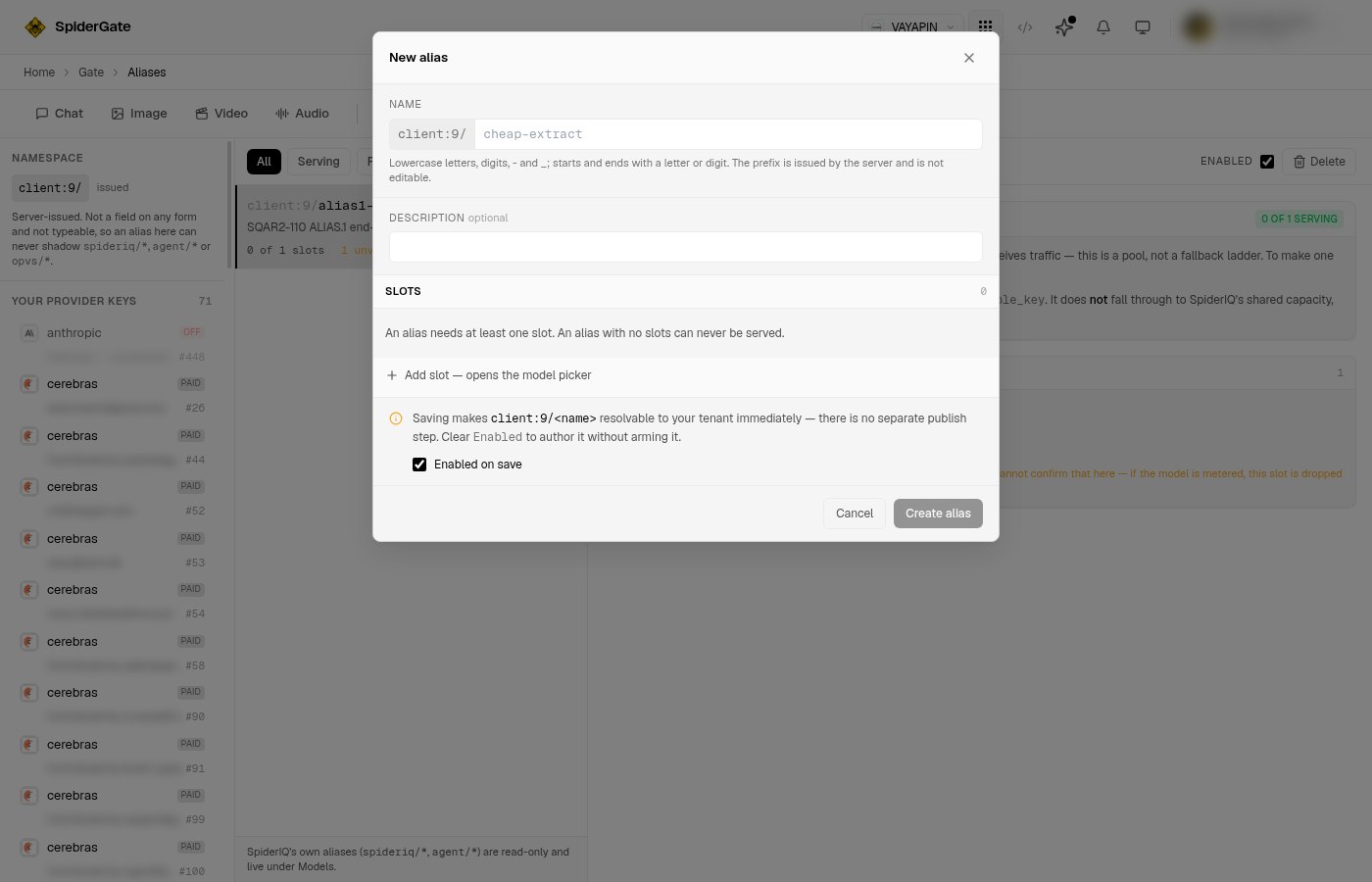
Type the leaf only — cheap-extract. The client:9/ part in front of the field is issued by the server. It is not an input, it cannot be typed, and that is what makes it impossible for an alias of yours to shadow spideriq/*, agent/* or opvs/*.
Leaves are lowercase letters, digits, - and _, starting and ending with a letter or digit, up to 64 characters.
3. Add your slots
Add slot opens the model picker. Pick a model, and pick which of your keys funds it. Repeat for as many models as you want in the set.
Slots are a pool, not a fallback ladder. Every slot that can serve will serve — SpiderGate picks between them by whichever is least busy. The numbering is display order, not priority, and slot 0 is not "the primary". If you want one model to be primary, give the alias only that one slot.
4. Save
Saving publishes. The alias is resolvable by your tenant the moment you click Create — there is no separate publish step. Clear Enabled on save if you want to author the set now and arm it later.
5. Use it
Send the full name as the model on an ordinary completion. Nothing else about your call changes.
curl -s "https://spideriq.ai/api/gate/v1/chat/completions" \
  -H "Authorization: Bearer $SPIDERGATE_TOKEN" \
  -H "Content-Type: application/json" \
  -d '{"model": "client:9/cheap-extract", "messages": [{"role": "user", "content": "Say hello"}]}'
Replace 9 with your own brand id — the page shows it, and so does every alias you create.
Verify it worked
Three checks, in order of how much they tell you:
The alias's chip on the Aliases page reads Serving, not Refusing.
The Resolution panel says how many slots are serving —
1 of 1 servingand not0 of 1.Send the completion above. A
200with a normal answer means it ran on your key. Then open Usage and confirm the spend landed against the key you expected.
The third is the only one that proves it end to end. The first two prove the alias could serve.
What happens if you name a model you have no key for
You are refused, clearly, at the point you try to save it:
slot 0 names key 999999, which is not an active key belonging to this brand.
A client alias may only use keys you own.
That is an HTTP 403, and it is deliberate. The alternative — quietly serving your request from SpiderIQ's pool because your own key would not do — would mean you asked to spend your money and we spent ours without telling you. SpiderGate refuses instead of substituting.
The same principle holds after the alias exists. If every slot has become unusable — the key was switched off, deleted, or cannot serve that model — the completion fails with client_alias_no_eligible_key. It does not fall through to a spideriq/* alias and it does not reach shared capacity.
Troubleshoot
"name is the short leaf only" — you typed a full alias. Send cheap-extract, not client:9/cheap-extract. The prefix is added for you.
A slot shows "unverified" instead of green — the key funding it is a free key. SpiderGate cannot confirm the model is free at that provider until dispatch. If it turns out to be metered, that slot is dropped.
A slot shows "will not serve" — the key is inactive, or it is an inject-only provider such as Anthropic or the Gemini CLI. Re-activate it under Keys, or pick a different key.
client_alias_disabled — the alias exists but is not armed. Tick Enabled.
client_alias_not_found — check the brand id in the name. Another tenant asking for your alias gets this same answer; that is intentional, because a different answer would confirm your alias exists.
A duplicate slot is rejected — two identical key-provider-model slots collapse into one deployment, so the second could never be reached. Remove it.
Doing it from an agent
Everything above is available to an AI agent, with no dashboard.
Wire up the gateway MCP server:
{
  "mcpServers": {
    "spideriq-gate": {
      "command": "npx",
      "args": ["--registry=https://npm.spideriq.ai", "@spideriq/mcp-gate"],
      "env": { "SPIDERIQ_FORMAT": "yaml" }
    }
  }
}
Then ask for what you want in plain language. This instruction works as written:
Create a client alias called
cheap-extracton my brand, with one slot using my Groq key foropenai/gpt-oss-120b. Show me the resolution before you arm it.
The agent has five tools for this — gate_client_alias_list, gate_client_alias_get, gate_client_alias_create, gate_client_alias_update and gate_client_alias_delete. None of them takes a tenant argument, so an agent acting for you has no way to name anybody else's brand, even if it is asked to.
For the same thing at a terminal:
spideriq gate client-alias list
spideriq gate client-alias create cheap-extract \
  --slots '[{"integration_id":49,"provider":"groq","model":"openai/gpt-oss-120b"}]'
Where to get the skill
The written guidance an agent follows for this ships as @spideriq/gateway-skills on the OPVS Marketplace:
opvs-skills install @spideriq/gateway-skills --runtime claude-code --dest .Restart your editor afterwards — skills are read at session start, so one dropped in mid-session is invisible.
Related
Task Aliases — the
spideriq/*aliases we maintain, and when to use one insteadClient Aliases API — the five endpoints, their parameters and every error
The key vault — adding and activating the keys an alias runs on
Usage — confirming which key paid for what