Create your account
Who this is for: Anyone who wants a SpiderGate account, whether you sign up with an email address or with a Google or GitHub account.
What this does: Creates your SpiderGate account and its own free workspace, and signs you in to the SpiderGate dashboard.
Before you begin
You need an email address you can open, or a Google or GitHub account.
If you already have a SpiderIQ account, you do not need a new one. Sign in at
gate.spideriq.ai/logininstead. The same Google and GitHub buttons are there.
Steps
1. Open the sign-up page
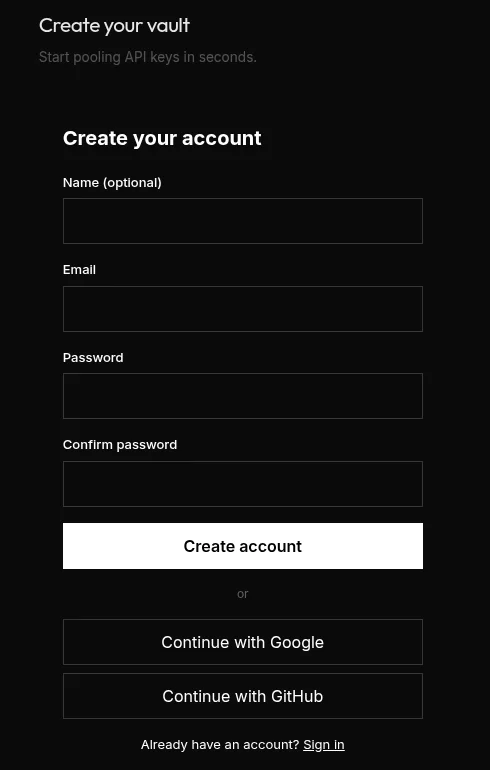
Go to gate.spideriq.ai/signup. The form has the email fields at the top and two buttons below them: Continue with Google and Continue with GitHub.
2. Sign up with Google or GitHub
Click Continue with Google or Continue with GitHub. The provider asks you to choose an account and approve the request. Approve it, and you come back signed in. You do not create a password.
If that Google or GitHub account is new to SpiderIQ, SpiderGate creates a free workspace for it during sign-up and makes you its admin.
3. Or sign up with an email and a password
Fill in Email, Password and Confirm password. Name is optional. Click Create account. SpiderGate sends you a confirmation email. Click the link in it within 60 minutes, then sign in with the email and password you chose.
4. Start on the SpiderGate dashboard
After you sign in, you land on app.spideriq.ai/dashboard/gate. A brand-new account may see the welcome screen first. Choose Continue setup there to add your first keys.
Verify it worked
Open app.spideriq.ai/dashboard/gate. The page opens without asking you to sign in, shows the Chat tab with "Add a key to start chatting", and shows the Finish setup checklist. That is your new workspace, ready for its first key.
Troubleshoot
Google or GitHub opened an account I already had? The email on that Google or GitHub account already belongs to a SpiderIQ account, so SpiderGate signs you in to that account. It never creates a second workspace for the same email. For a separate account, use a Google or GitHub account with a different email.
The confirmation link says it expired? The link works for 60 minutes. Sign up again on
gate.spideriq.ai/signupwith the same email, and SpiderGate sends a new link.I want to sign in again later? Use
gate.spideriq.ai/loginand the same method you signed up with: the email and password, or the same Google or GitHub button.